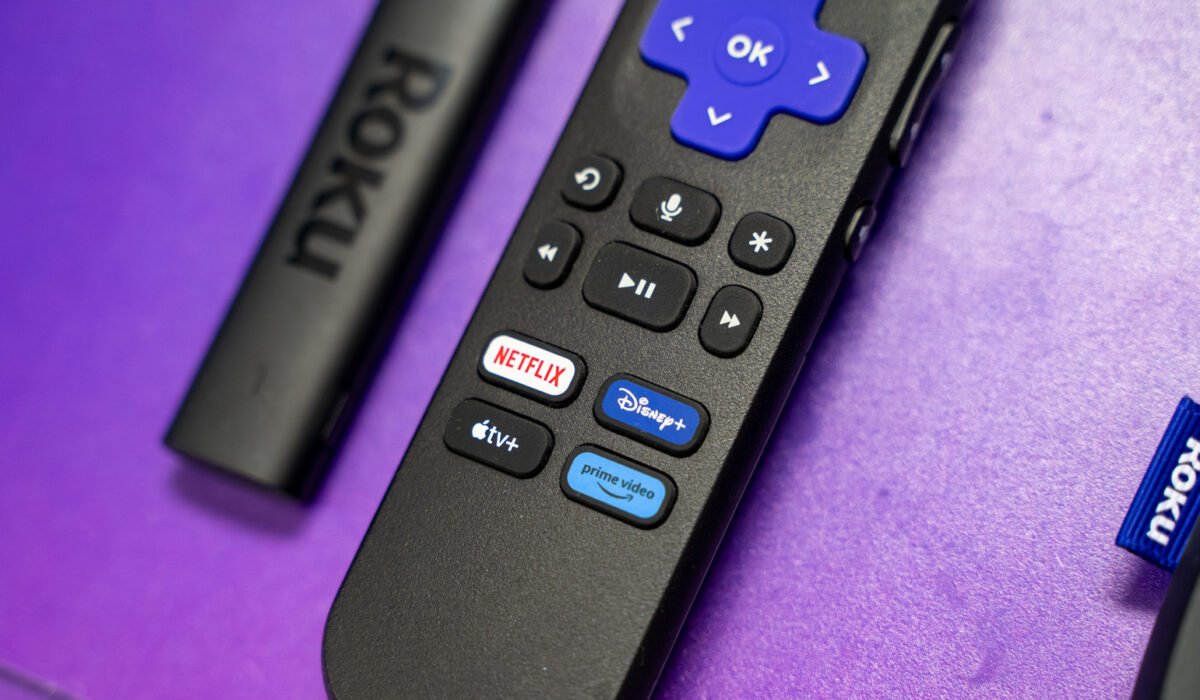
Say what you will about Roku in light of its impending takeover by Fox, but its devices are a study in simplicity. The hardware and software controls are straightforward, and Roku has largely avoided cluttering its operating system with flashy visuals or endless recommendation lists. You can launch your favorite streaming app in seconds. That said, the platform is not immune to crashes, which can be especially frustrating on a smart TV or media streamer compared with a computer. While conflicts are common on complex machines, a Roku device is built almost solely for video streaming, perhaps with a bit of music, so a crash can feel as odd as a microwave refusing to pop corn. Several factors can cause Roku apps to crash, and most of them can be addressed with one of three basic steps. In rarer cases, more drastic measures such as a hardware upgrade might be required, but we’ll try to keep you from needing those.
One common cause is a bug in the app or the Roku OS itself. Even though developers work hard to eliminate bugs, testing can never cover every hardware and software combination. Roku devices normally update automatically when you perform a cold boot or leave the unit on for 24 to 36 hours. To speed up the process, use the remote to go to Settings > System > Software update > Check Now. Remember that a patch may take days or weeks to be released. If updating does not resolve the issue, try restarting the Roku via Settings > System > Power > System restart (some models may not show a Power menu). Restarting clears background processes and the system cache, often fixing minor glitches. It is also a good habit to restart periodically to keep the device running smoothly.
Another helpful practice is to delete apps you no longer use. While Roku apps are not large, the 2024 Roku Ultra has only 4 GB of storage, and older or lower‑end models have even less. You could be exhausting the swap space the OS needs, so removing unused apps can free up resources and prevent crashes.
If you have tried updates, restarts, and housekeeping without success, the next step is a factory reset. This restores the device to its original out‑of‑the‑box state, erasing all installed apps, settings, and account logins. Because it requires you to reinstall everything, a reset should be a last resort. To perform it, navigate to System > Advanced system settings > Factory reset. Roku also provides hardware‑based reset options for devices that have become completely unresponsive.
For devices that are several years old, it is possible that they can no longer keep up with the latest software demands. Although Roku supports its hardware with updates longer than many competitors, new features and higher‑resolution graphics can strain the RAM and processor of older models. In such cases, upgrading to a newer streaming device may be the only viable solution. Additionally, streaming services sometimes discontinue support for older app versions for security or other reasons, so keeping apps updated is essential.