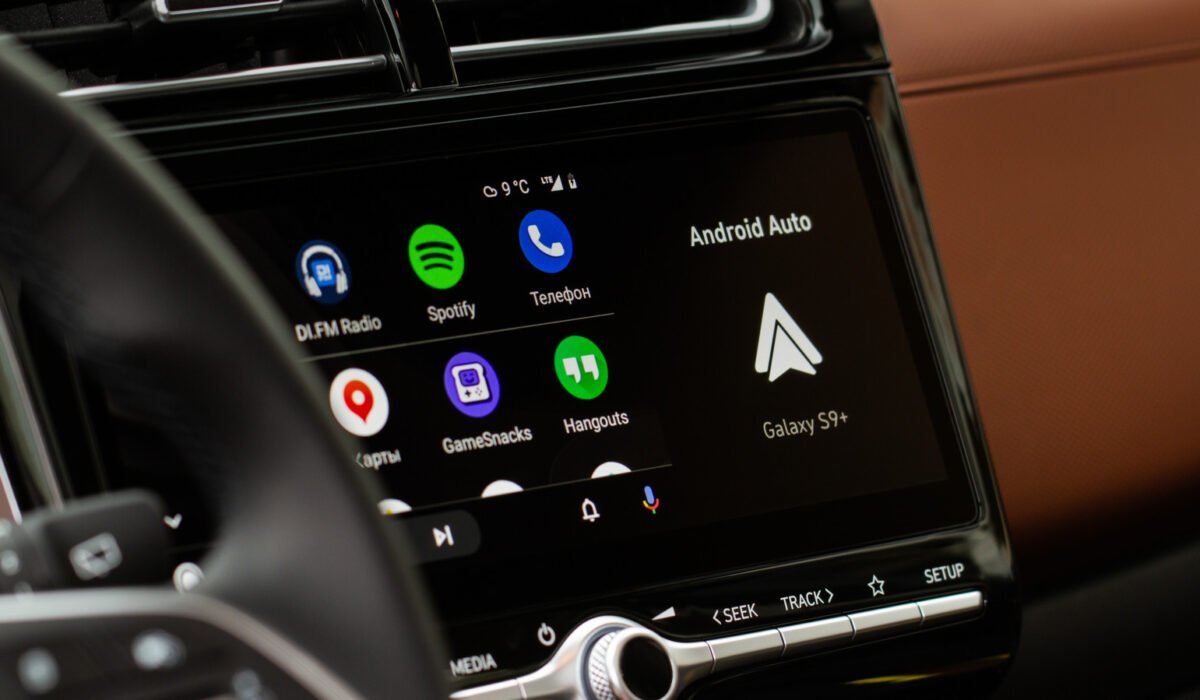
If you’ve ever turned the key and been hit with music you didn’t ask for, you know how annoying Android Auto’s autoplay can be. As soon as your phone links to the car—whether by USB, wirelessly, or through an adapter—your most recent playlist, podcast, or audiobook resumes at the volume you left it at. That sudden burst of sound can be a distraction during a morning commute, especially if you prefer a few quiet seconds before pulling out of the driveway, and it may not be suitable for kids riding in the back seat.
In the past, fixing the issue required a series of workarounds, extra apps, and a lot of patience. Today, the solution often comes down to a single toggle.
**Turn off Android Auto’s “Start music automatically” setting**
1. Open your phone’s Settings.
2. Navigate to Connected devices → Android Auto.
3. In the Startup section, locate the “Start music automatically” toggle and switch it off.
If you have trouble finding the option, use the Settings search bar and type “Android Auto.” Disabling this feature tells Android Auto not to resume playback the moment it connects to your vehicle. For many drivers, this alone solves the problem, and it is the first suggestion on Spotify’s support forums.
**If the toggle doesn’t work, try a Bluetooth reset**
Android Auto relies on Bluetooth for phone calls and the initial handshake with the car. A common workaround is to delete your phone from the car’s Bluetooth memory and then reconnect using USB only, if your setup permits. In some vehicles this stops unwanted playback, though results can vary depending on the car, phone model, and connection type.
**Why does Spotify keep autoplaying?**
Even after disabling the Android Auto toggle, some Spotify users still experience autoplay. Community posts dating back to 2022 show that the issue is real and ongoing. Often the culprit is not the car itself but another Bluetooth device—headphones, speakers, or a different car system—that sends a “play” command to Spotify when it reconnects or powers on. Spotify’s support team notes that the app cannot always block such commands because they originate from the Bluetooth accessory’s interaction with Spotify’s API.
Before reinstalling the app or blaming your phone, test whether autoplay occurs with a specific Bluetooth device. Try pairing a different speaker, headset, or another vehicle to see if the problem persists. Keeping Spotify, your phone’s operating system, and the car’s firmware up to date can reduce glitches, but there is no universal fix when the command comes from the accessory.
Because Spotify aims to work with thousands of hardware combinations, a one‑size‑fits‑all solution is unlikely. Some drivers find relief through Android Auto’s settings, others adjust Spotify’s app permissions, and many report that neither method works consistently for their particular setup.
If all else fails, you can remove Spotify from Android Auto entirely, but that means you will lose the ability to control Spotify from the car’s display.
**Bottom line**: Start by turning off the “Start music automatically” toggle in Android Auto. If music still starts on its own, try unpairing and reconnecting via USB to reset the Bluetooth link. Expect a bit of trial and error, as Bluetooth behavior varies widely across car models and devices.