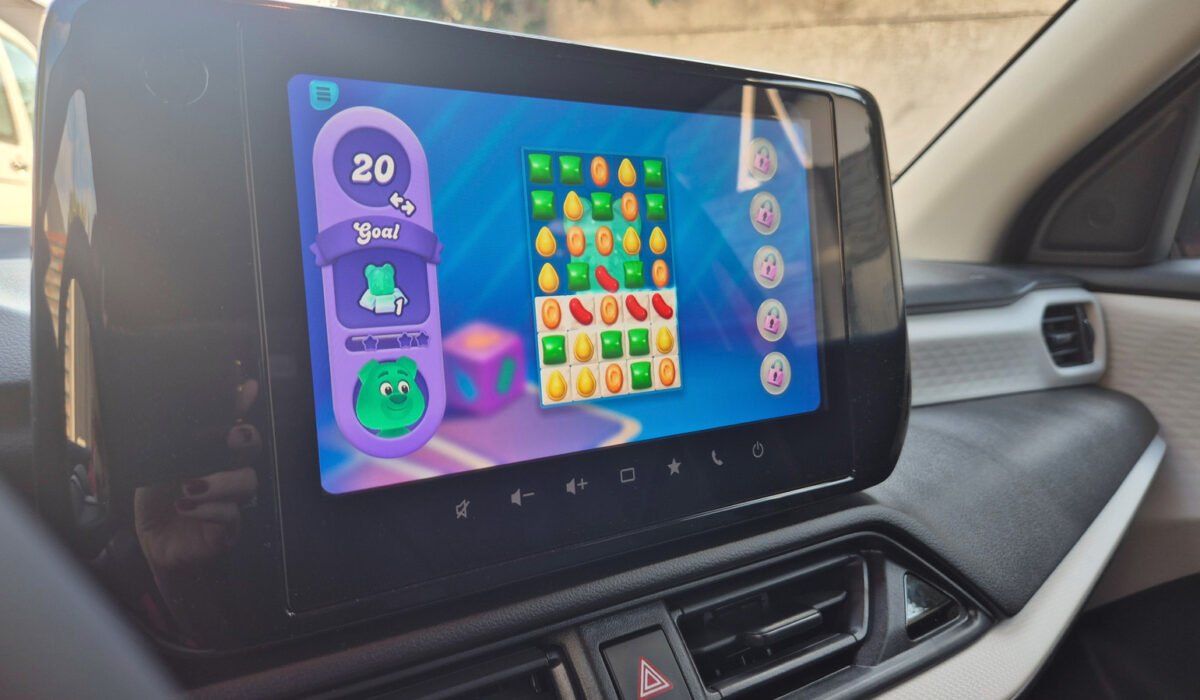
If you have ever wished you could enjoy a game on your car’s larger screen while waiting for the kids’ practice to finish, the option is now available. Android Auto has added official game support, moving out of beta in September 2026 after Google invited developers to add car compatibility to their titles. With an Android phone and a vehicle equipped with Android Auto, you can now play games while your electric vehicle charges, during a party drop‑off, or on a rest stop during a long drive. Google says the feature is meant to give drivers something enjoyable during idle periods, and developers are already adding more titles.
At present, just over 35 games are compatible with Android Auto. Many are geared toward younger children, offering coloring activities, letter recognition and basic math. There are also popular casual titles such as Angry Birds 2, Candy Crush Soda Saga and Beach Buggy Racing. More demanding games like Hearthstone, Call of Duty or Super Mario Run are not yet supported, but the selection is expected to grow as developers continue to add content.
A key limitation is that games can only be played while the vehicle is parked. The software checks that the car is stationary, so you will not be able to start a round at a traffic light or during a crawl. If you shift into gear, the game disappears, Android Auto returns to the home screen and the game icon turns gray. Full‑screen mirroring of any phone game is not possible on Android Auto; the platform requires native support to size the game correctly for the dashboard display and to uphold safety standards. Supported games do work with external controllers, giving a more console‑like feel.
Getting a game onto the screen is simple. First, download a compatible title from Google’s Android Auto game catalog, or browse the Play Store under Apps → Categories → Android Auto. After the app is installed, connect your phone to the car using a USB cable or wirelessly, depending on your vehicle’s setup. The installed games should appear on the Android Auto display. If they do not, open Settings → Connected Devices → Android Auto → Customize launcher and make sure the desired games are enabled. Once the car is parked, launch the game and enjoy.
If none of the current Android Auto titles appeal to you, the platform also offers GameSnacks, a collection of lightweight games that work without additional downloads. Angry Birds 2 plays just as well on the larger screen, while Candy Crush Soda Saga remains responsive and entertaining. For younger passengers, My Talking Tom Friends provides a kid‑friendly option. Some titles, such as BB Racing 2, are difficult to control using the touch screen alone; a connected controller can make those games more playable.
Overall, the new Android Auto gaming feature gives drivers and passengers more ways to pass the time while the vehicle is stationary, offering a welcome alternative to scrolling through social media. It adds another layer of enjoyment to the Android Auto experience.