Wearable enthusiasts often notice a small orange dot at the far left of the Galaxy Watch display, and many wonder what it means. Whether you are new to smartwatches or have switched from another brand, such as moving from an Apple Watch Ultra 4 to a Galaxy Watch Ultra 2, Samsung’s devices include a few subtle visual cues that convey status information.
The orange dot is a notification indicator. It appears whenever there are unread notifications waiting on the watch, and it stays visible until you open or dismiss each one. If the dot turns red instead of orange, it signals an urgent message that requires immediate attention. The indicator is optional; you can disable it by opening Settings → Notifications → Advanced Settings on the watch and turning off “New notification indicator on watch face.” The same option is available from a paired Samsung phone through the Wearable app: go to Watch Settings → Notifications → Advanced notification settings and toggle the same setting off.
The dot is not the only icon that can appear on a Galaxy Watch. At the top of the screen you may see a phone icon with a slash, which means the watch has lost its Bluetooth connection to the phone. A rectangle with a cloud inside indicates the watch is linked to the phone via mobile data or Wi‑Fi rather than Bluetooth, while a padlock means the device is locked and will require a password or PIN to unlock. At the bottom, a blue music note shows that an app is playing audio; tapping it lets you pause or skip tracks. A green phone icon can also appear there, indicating that a call is in progress on the watch or the connected phone.
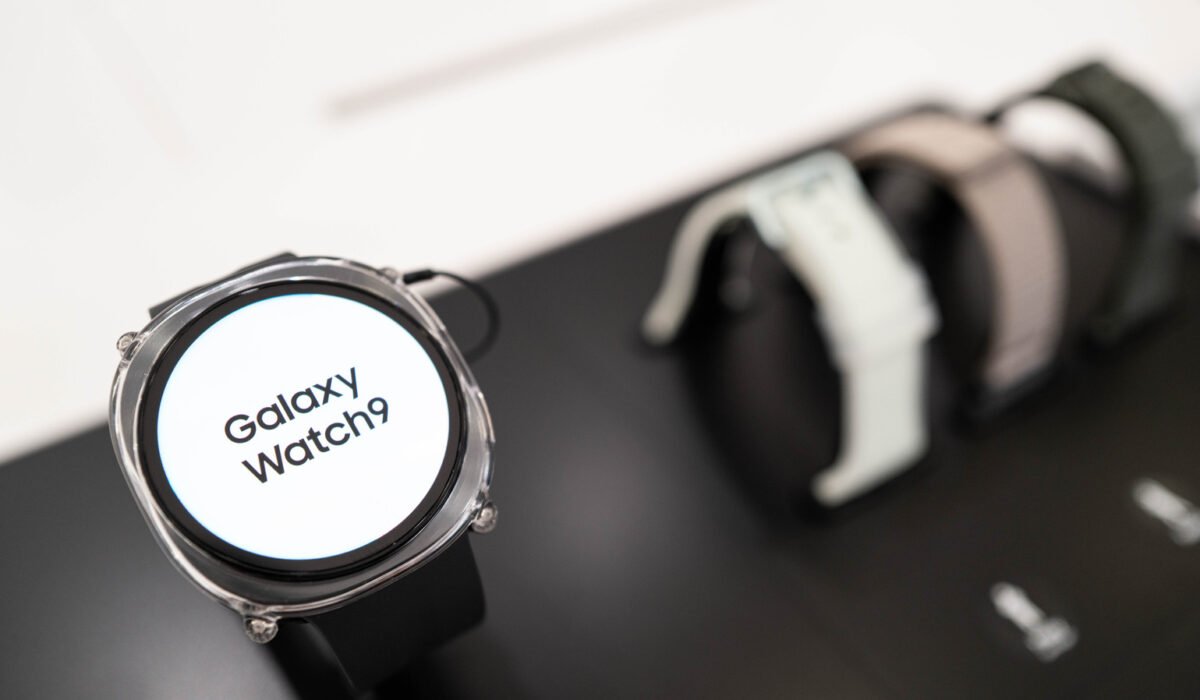
These visual cues are designed to save space on the small screen while keeping users informed. The orange notification dot has been a consistent feature across recent models, including the Galaxy Watch 8, Galaxy Watch 9, and the Ultra 2.
Image credit: Wongsakorn 2468/Shutterstock. By Jack Peachey, Oct. 18 2026, 8:00 pm EST. Engadget on Google: Preferred Source Google Discover.