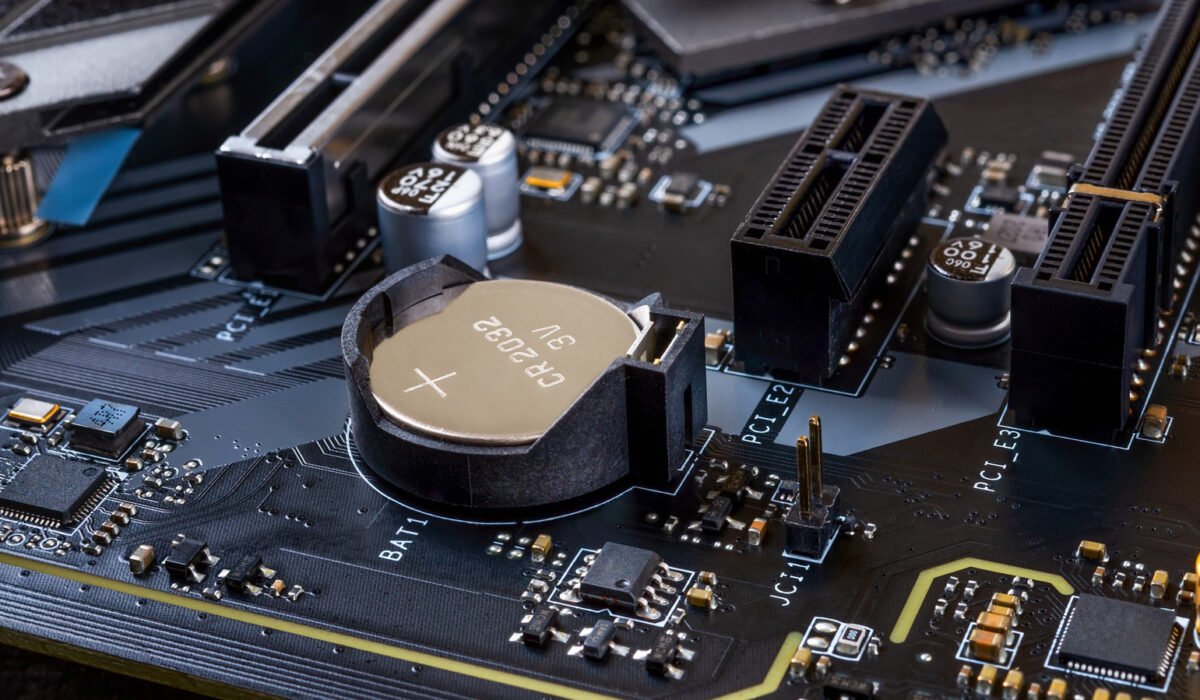
You may have never paid attention to the tiny disc‑shaped battery on a desktop’s motherboard, but you’ll notice its absence when it stops working. The coin‑size cell, installed at the factory, powers the real‑time clock and preserves basic hardware settings while the computer is turned off. Like any battery, the CMOS (complementary metal‑oxide‑semiconductor) cell has a finite life and will eventually need replacement. The good news is that swapping it out is cheap and straightforward, and most users can go several years without a problem because the battery only drains when the PC is unplugged.
The CMOS battery acts as a backup power source for the motherboard, keeping the date, time and BIOS/UEFI settings alive even when the system is disconnected from mains power. Most desktops use a standard CR2032 coin cell—the same type found in Apple’s AirTags—while a few older models may use a CR2025. Because the battery only powers a clock and a small memory chip, it can last anywhere from a few years to a decade.
A common symptom of a failing battery is the inability to retain the correct date and time after the computer is shut down or unplugged. The system may revert to a default date such as January 1, 2000 or January 1, 1970 on each boot. An inaccurate clock can cause HTTPS sites to fail, since security certificates depend on precise timestamps, and it can also confuse file “last updated” stamps. Modern operating systems often correct the time by contacting an online server at startup, so the issue may go unnoticed until the battery dies completely.
When the battery is dead, the BIOS or UEFI will display a warning during boot and reset to factory defaults each time the machine starts. This means settings like boot order, fan profiles and other low‑level options return to their original values. The problem does not affect your applications or files, but replacing the battery is inexpensive and easy. To keep settings with a dead battery, use sleep mode instead of a full reboot and avoid unplugging the PC.
Laptops typically rely on the main battery to maintain the clock, so a dead CMOS cell is more often a desktop issue. Moreover, many laptops do not have user‑replaceable components, making the problem less likely to surface.
**How to replace the CMOS battery**
If you suspect the battery needs changing, you only need a new coin cell and a few minutes. Most modern cases are tool‑less, but having a flat‑head screwdriver handy can make it easier to pry the old cell out.
1. Power down the computer and remove the side panel of the case.
2. Locate the silver, round battery on the motherboard. It may be hidden behind a graphics card or other large component, which you can temporarily remove if needed.
3. The battery is usually held in place by a clip or latch. Gently lift the clip with a flat‑head screwdriver or a similar flat object and lift the battery out.
4. Insert the new battery with the positive side facing up, reseat the clip, replace the side panel and close the case.
For mini PCs or non‑standard boards, consult the manual before starting. After installing the new cell, enter the BIOS or UEFI to restore any custom settings you had, such as Intel XMP or AMD EXPO profiles for RAM performance. You may also want to re‑enable any CPU overclocking features, remembering that higher performance brings increased power draw and heat.