By Thomas Godwin
Oct. 24, 2026 7:30 pm EST
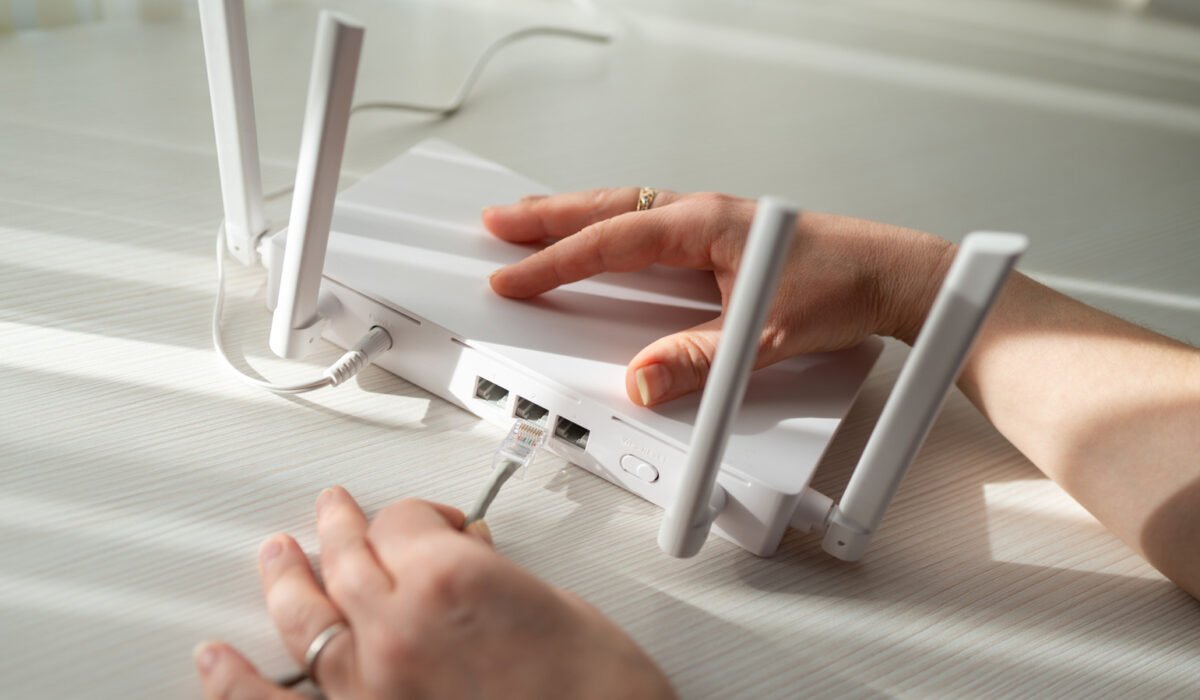
Setting up a home network may seem straightforward, but small oversights can cause big problems later. One of the most frequent issues is placing the router in a poor location. While nobody wants a bulky TP‑Link spider router dominating the living room, tucking it into a hidden corner isn’t ideal either. The device should sit as close to the center of the house as possible without becoming a tripping hazard. Keep it away from appliances that emit interference, such as microwaves, cordless phones and baby monitors.
If your internet connection terminates in a corner of the home, you don’t have to keep everything there. Even when your ISP provides a modem or gateway, you can run an Ethernet cable to a secondary access point placed elsewhere. This may mean concealing an extra cable, but it often yields better coverage.
When buying a router, match it to the speed of your service. In rural areas where DSL or satellite is the only option, a high‑performance gaming router will be unnecessary. Think about your home’s layout and the coverage you need in each room. Large or multi‑story houses often benefit from a mesh system, but each node must be positioned carefully to achieve true whole‑home coverage.
Relying on Wi‑Fi for every device can be a mistake. Wireless connections are convenient, yet they are not optimal for activities that demand low latency, such as online gaming. A typical household might have several smartphones, bedroom TVs, tablets, smart speakers, game consoles and a gaming PC. Letting the PC compete for bandwidth over Wi‑Fi can cause lag; running a direct Ethernet cable from the router to the PC eliminates that bottleneck. A wired link provides higher speeds, lower latency, resistance to interference and better security. Cat6a cable can handle 10‑gigabit speeds over distances up to 100 meters, which is useful if you have a very fast internet plan.
Before you start pulling cables, decide where wired devices will live, add equipment one piece at a time, test each stage and label the cables. Proper documentation makes troubleshooting far easier later on.
Software‑side errors are easy to miss because the network may still appear to work. Weak router security is especially risky. Enable WPA3 Personal if your router and devices support it; if older gear is present, use WPA2/WPA3 transitional mode so newer devices can use WPA3 while older ones fall back to WPA2 with AES. Avoid outdated protocols like WEP and TKIP. Change both the router’s administrator password and the Wi‑Fi password. The admin password protects against unauthorized changes, while the Wi‑Fi password controls who can join the network. Use a strong, unique password rather than something simple like a phone number. Keep the router’s firmware up to date to protect against known vulnerabilities.
Another common pitfall is adding a mesh system or new router without checking how it interacts with existing hardware. Running two DHCP servers on the same network can cause address conflicts; configure the new device in bridge mode or access‑point mode to avoid this. Follow the setup instructions, keep the configuration simple, document your changes and introduce new features gradually. These steps may seem excessive, but they save a lot of hassle when problems arise.